Skip to content
splatpad by golka

Every tap and key press makes something.

Splatpad is a blank canvas for very small hands. Press a key or touch the screen and colourful splats, stars and animals pop up with a sound of their own. No menus to get lost in, no ads, nothing to break.

Coming to the App Store For iPhone, iPad and Mac · one-time purchase, no ads, no tracking

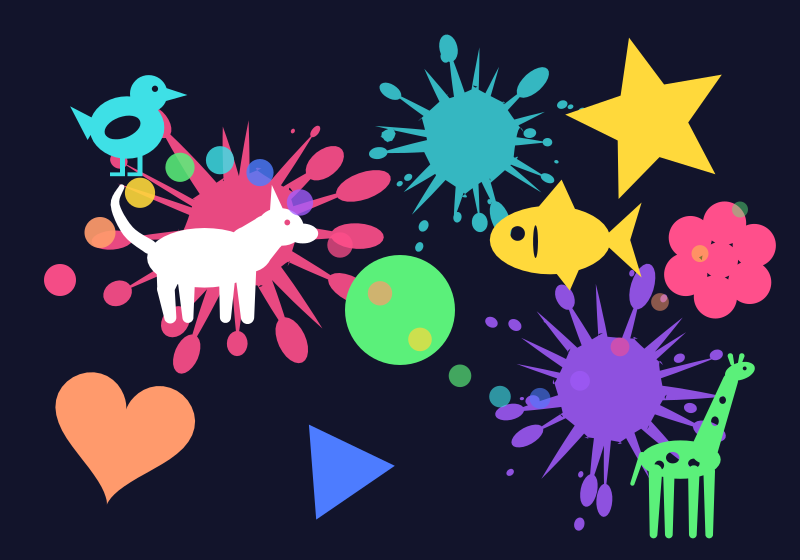
A dark canvas covered in colourful paint splats, stars, a heart and animal silhouettes, with a trail of dots across it.

An example of a finished canvas, drawn from the app's own shapes.

What it does

Every touch makes something

Paint splats, stars, hearts, flowers and a dozen animal silhouettes pop up where a finger lands or a key is pressed — in random colours, sizes and places. Tap with several fingers at once and each one leaves its own mark and its own trail.

A sound for every key

Every key has its own note from a scale that always sounds pleasant, even when pressed at random, so a small child slowly learns which key makes which sound. On iPhone and iPad the pitch follows where the finger lands. All sounds are made in the app, and the sound can be switched off.

Locked in for little hands

On the Mac it fills the screen and blocks the shortcuts a child would hit by accident. On iPhone and iPad it works with Guided Access, and the app explains how to set it up. Either way, the parent’s controls sit behind a deliberate 3-second hold, and on iPhone and iPad behind a short sum only a grown-up can solve.

Yours to tune

Pick the background colour, which shapes appear, whether they fade away or stay on the canvas, and one colour or many. Clear the canvas in a tap, or save the finished picture. Available in English and Czech, following your device.

Support

How do I stop my child leaving the app?

On iPhone and iPad an app cannot lock itself, but Guided Access can lock it for you. In Settings → Accessibility → Guided Access, turn it on and set a passcode, then open Splatpad and triple-click the side button. The app has a step-by-step guide behind the button How to lock the app on its start screen.

On the Mac the app fills the screen, hides the Dock and menu bar, and blocks switching apps and Force Quit. To leave, hold ⌘⌥⇧ Q for three seconds.

A few controls cannot be blocked by any app on either platform, such as the power button. If you want to be extra safe on the Mac, also turn off Spotlight and the system gestures in System Settings.
How do I change the settings or clear the canvas while it is locked?

On the Mac, hold ⌘⌥⇧ and press a letter: M opens the settings, C clears the canvas, S saves the picture, and L switches between shapes and letters. The same list is shown in the settings window.

On iPhone and iPad, hold the small lock icon in the top-left corner for three seconds, then answer a short sum that a small child cannot solve. A menu opens with Clear the canvas, Save or share the picture, the settings and the Guided Access guide.

Can I keep a picture my child made?

Yes. On the Mac, press ⌘⌥⇧ S, or say yes when the app offers to save as it quits. The picture is a PNG, and the save dialog starts in Pictures → Splatpad. On iPhone and iPad, open the parent menu and choose Save or share the picture; the standard share sheet lets you save it to Photos or Files, or send it on. The app never saves or sends anything on its own.

What is the letters mode?

On the Mac, switching to letters turns the app into a big, colourful typewriter: every letter typed appears large in a random colour, with Backspace and Enter working as expected. Nothing typed is stored. It is not available on iPhone and iPad, which have no physical keyboard to type on.

Which devices and languages does it support?

iPhone and iPad with iOS 16 or later, and Macs with macOS 13 or later. The app is available in English and Czech. It follows the language of your device and you can change it in the settings.

Still stuck? Email support@golka.org and we will get back to you.

Privacy

Splatpad does not collect any data. Full stop.

Read the full privacy policy